
We’ve all been there, “Your disk is almost full,” and your heart sinks. You start deleting a few photos. Maybe an old Word doc here and there. But the space barely moves.
Where is it all going?
This is where WinDirStat comes in, and why it’s been one of my go-to tools for nearly 20 years. This is not an affiliate link this is just a product I love: windirstat.net/
The links to the drives I use are Amazon affiliate links (aff link).
What is WinDirStat?
WinDirStat (short for Windows Directory Statistics) is a free, open-source program for Windows that scans your hard drive and shows you exactly how your storage is being used. Not just in a list, in a visual, color-coded map that makes it instantly obvious which files are hogging space.
It’s like a PET scan for your computer’s storage.

How It Works
When you launch WinDirStat, you pick a drive or folder to scan. Within a few minutes you’ll get three key views:
- Directory List — A sortable list showing folders ranked by the amount of space they take.
Press enter or click to view image in full size
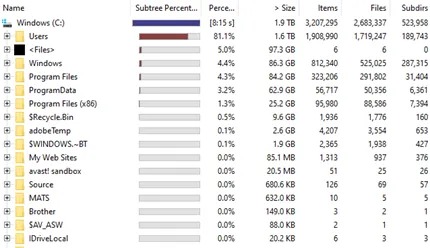
- Extension List — A breakdown of which file types are using the most space.
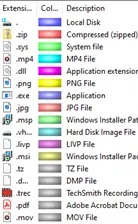
- Treemap — A big, colorful rectangle divided into smaller blocks. Each block is a file, sized proportionally to its storage footprint, and colored according to its file type.
Click on any block in the treemap, and it highlights the exact file and location in your folder tree. Those Photoshop temp files can take up SO much space!
Why It’s So Useful
The treemap alone is a game-changer. Instead of clicking through dozens of folders and guessing, you can spot huge files immediately. For example:
- That 18GB video project you forgot about in Documents.
- 7GB of old installers hiding in your Downloads folder.
- Multiple gigabytes of temporary files you didn’t even know existed.
It takes the cleanup identification process from hours into minutes.
Real-Life Example
This morning my main laptop gave me a warning that I was running low on space. My C: drive was down to less than 2 GB of free space. 1.54 GB free of 1.81 TB!
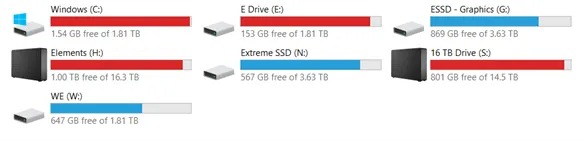
Side note: why so many drives?
- C = Main OS drive and general Windows files (documents, downloads, etc.)
- E = Secondary 2 TB drive in my laptop for all of my working files (easy to take out and put in another machine).
- G = An external 4 TB SanDisk (aff link) drive for storing all of my graphics (files purchased from various sites, laser files, and more).
- H = A Western Digital 18 TB external drive (aff link) for backups of all of my drives.
- N = Another 4 TB SanDisk drive that’s a direct backup of my E drive.
- S = A 16 TB Seagate external drive (aff link) that duplicates H.
- W = A 2 TB SSD (aff link) in an external aluminum enclosure (aff link) so it can be accessed as an external drive that stores client files in separate encrypted folders so they can easily be deleted or transferred to the client. This setup can be handy for an inexpensive portable storage device.
That many drives sounds crazy right? It only takes losing the contents of your drive once to know you need backups. More in a future article about the software I use to do these backups, Syncovery (formerly Super Flexible File Synchronizer — that says it all).
I ran WinDirStat, and in under 5 minutes I discovered:
- Duplicative folders of around 200 GB of photos from my phone (that are already backed up on another drive).
- 436 GB of temp files (not all can be deleted but many can be).
- 300 GB of download files I’ve already backed up to another drive.
Fifteen minutes later, I had 145GB of free space on my C Drive and things were running a bit smoother. I’m still working on moving those other files but when done I’ll have nearly a TB of space freed up. After this I’ll run CCleaner’s duplicate checker to remove duplicates from each of my drives and then run Syncovery to sync everything.
Features I Love
- Free and Open Source: No hidden “upgrade” prompts.
- Fast Scans : Even on large drives with a quick “refresh” once you delete or move files.
- Interactive Treemap : Click to locate or delete files directly.
- Extension Analysis : See how much space all your PDFs, ZIPs, or MP4s are taking.
- Multiple Drive Support : Scan external or network drives, too.
Cost and Where to Get It
- Price: Free.
- Platform: Windows only.
- Download: windirstat.net
Pro tip: Download it directly from the official site to avoid bundled junk from third-party downloaders.
My Favorite WinDirStat Trick
Keep it on a USB “rescue stick.” Anytime a friend or family member calls and says, “My computer says the drive is full and I don’t know why,” or “Why’s my machine running so slow?!” I plug it in, run the scan, and point straight to the problem. Plus this is a great way to encourage people to back up their files to external drives or the cloud.
Bottom Line
If you’ve ever wondered where your storage space went, or you’re staring at a red bar in Windows Explorer, WinDirStat is the fastest, clearest way to get the answer. And unlike some “cleaner” tools, it won’t delete anything automatically. You stay in control.
Your drive will thank you. Your sanity will thank you. And you’ll never go back to guessing where all that space went.
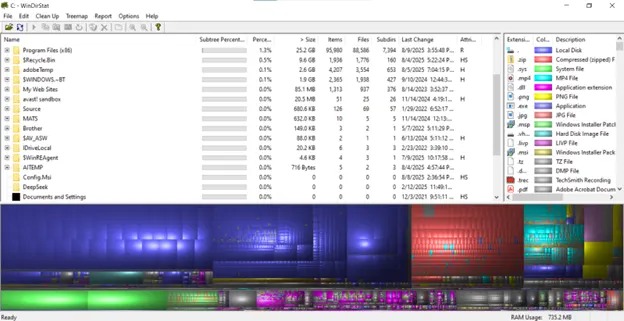
And for those who say, “What!? You’re using a Windows machine?” Absolutely, while I have a Mac, most of my clients and companies I work with use Windows machines and it’s important I’m able to duplicate any issues they may have or guide them through processes when needed.
